
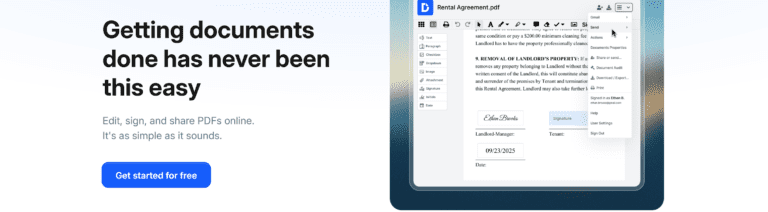
Introduction to DocHub and its features
Signing PDF documents can often feel like a cumbersome task, especially when you need to print, sign, and then scan everything back into your computer. Thankfully, there’s an easier way! DocHub is here to revolutionize how you handle PDF signing and document management. This powerful online tool allows users to sign documents digitally in just a few clicks. With its user-friendly interface and robust features, DocHub makes the entire process efficient and stress-free.
Whether you’re a busy professional needing to finalize contracts or someone who frequently sends out forms for approval, mastering DocHub will save you time while ensuring your documents are signed securely. Let’s dive into how this fantastic platform works so that you can start enjoying the convenience of digital signatures today!
Creating a DocHub account
Creating a DocHub account is a straightforward process. Start by visiting the DocHub website.
You’ll find an option to sign up either using your email or through Google. If you prefer convenience, the Google option is quick and efficient.
After selecting your preferred method, fill out any required fields. For email sign-ups, make sure to choose a strong password to keep your documents secure.
Once you’ve completed registration, check your inbox for a verification email if you signed up with an email address. Click on the link provided to activate your account.
Now you’re ready to dive into all that DocHub has to offer! The user-friendly interface awaits you as you get set for document management like never before.
Importing a PDF document
Importing a PDF document into DocHub is a breeze. Once you’ve logged in to your account, look for the “New Document” button on the dashboard.
Click it and choose from multiple options. You can upload files directly from your computer or import them from cloud storage services like Google Drive or Dropbox. This flexibility makes it easy to access documents whenever you need them.
If you’re using a URL, simply paste it in the designated field, and DocHub will pull up the PDF for you.
Make sure your file format is correct; typically, only standard PDF formats are supported. After selecting your document, wait just a moment while DocHub processes the file. You’ll be ready to add signatures and annotations before you know it!
Adding signature and other annotations

Now it’s time to personalize your document. Adding a signature in DocHub is straightforward.
First, locate the “Signature” tool on the toolbar. You can choose to draw your signature using your mouse or trackpad. Alternatively, upload an image of your handwritten signature if you prefer that personal touch.
Once you’ve placed your signature, explore additional annotation options. Use text boxes for comments or explanations. Highlight important sections with easy-to-use highlight tools.
You might want to insert shapes or arrows to direct attention where it’s needed most. Each feature enhances clarity and communication.
Make sure everything looks organized before moving on. A well-signed document not only conveys professionalism but also ensures all parties understand their commitments clearly.
Saving and sharing the signed document
Once you’ve added your signature and any necessary annotations to the PDF, it’s time to save your work. Click on the “Save” button located at the top of the DocHub interface. This action ensures that all your modifications are securely stored.
After saving, sharing your document is simple. You’ll find options for downloading or sending via email right in the same menu. If you choose to download, select a preferred format—DocHub typically offers both PDF and other file types.
For seamless collaboration, consider using the share link feature. Generate a unique URL that allows others access without needing an account. You can even set permissions to control what others can do with your document.
Remember, keeping track of shared documents is crucial; check back regularly through DocHub’s dashboard for updates or feedback from recipients.
Additional features of DocHub
DocHub is more than just a PDF signing tool. It boasts a range of additional features that enhance your document management experience.
You can edit text within the PDF. This allows for quick corrections or updates without needing to start from scratch. Highlighting and adding comments make collaboration straightforward, especially in team settings.
The integration with cloud storage platforms like Google Drive and Dropbox is seamless. You can import documents directly from these services, making access easy and efficient.
With its user-friendly interface, navigating through various options feels intuitive. Whether you’re annotating documents or adjusting images, everything is at your fingertips.
Moreover, DocHub prioritizes security. Your signed documents are encrypted, ensuring that sensitive information remains private while sharing them with others becomes effortless.
Tips and tricks for using DocHub effectively
To maximize your experience with DocHub, explore keyboard shortcuts. They can significantly speed up your workflow. For instance, using “Ctrl + Z” allows for quick undo actions.
Familiarize yourself with the toolbar features. Each tool serves a specific purpose, from highlighting text to adding sticky notes. Experimenting with these will enhance your document’s clarity.
Utilize templates for frequently used forms or contracts. This saves time and ensures consistency across documents.
Don’t forget about the collaboration options! Invite others to review or edit by sharing a link directly through DocHub. This feature is perfect for teams working remotely.
Keep an eye on the integration settings. Linking DocHub with services like Google Drive lets you access files seamlessly without extra downloads or uploads.
Conclusion
Signing PDF documents has never been easier with DocHub. This user-friendly tool allows anyone to manage their document signing needs efficiently. By following the step-by-step instructions outlined above, you can create an account, import your PDFs, add signatures and annotations, and save or share your signed documents without any hassle.
With additional features like form filling and collaboration tools, DocHub stands out as a comprehensive solution for all your PDF editing needs. Remember to explore tips and tricks to enhance your experience even further.
Whether you’re a busy professional or someone who frequently handles paperwork at home, embracing digital solutions like DocHub simplifies tasks that once felt cumbersome. Now is the perfect time to take advantage of this powerful tool for all your document management requirements.